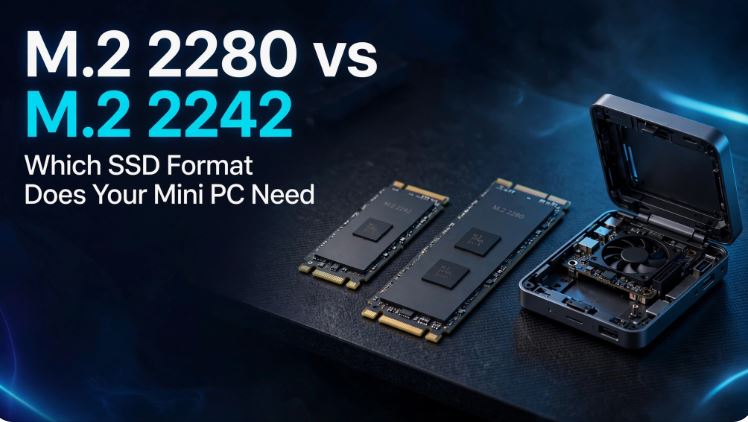
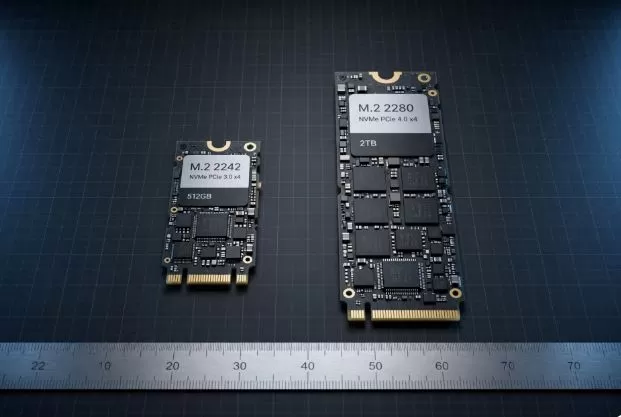
Upgrading the SSD in a Mini PC is one of the most effective ways to free up space for games, videos, projects, or virtual machines. However, before buying, you should check two things: the compatible M.2 physical size and the protocol supported by the slot, because an M.2 2242 SSD is not the same as an M.2 2280, even though they both use the same type of connector.
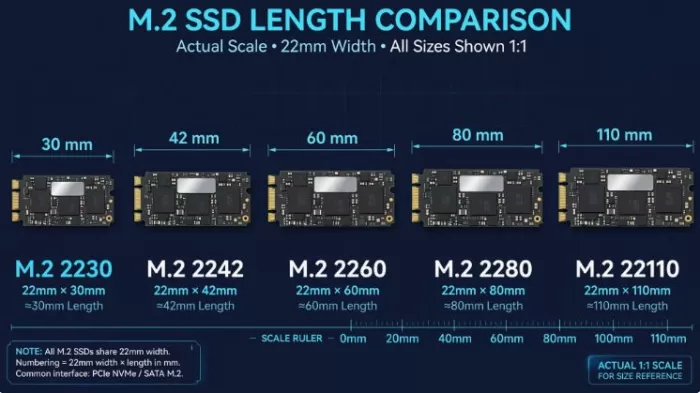
The 2280 form factor measures 22 mm wide and 80 mm long, while the 2242 form factor measures 22 mm wide and 42 mm long. The numbers identify physical dimensions, not speed, PCIe generation, or capacity.
M.2 2242 vs 2280
| Feature | M.2 2242 | M.2 2280 |
|---|---|---|
| Width | 22 mm | 22 mm |
| Length | 42 mm | 80 mm |
| Availability | Smaller; common in compact, industrial equipment and some Mini PCs | Very tall; it's the usual size for consumer SSDs |
| Available capabilities | More limited, although options of up to 4 TB already exist | More variety and larger capacities; options up to 8 TB are available |
| Heat sinks | Uncommon due to lack of space | Easier to find, although they don't always fit in Mini PCs |
| Compatibility | It depends on whether the Mini PC has a 42mm mounting bracket | It depends on whether it has space and an anchor point for 80 mm |
The size you need is determined exclusively by your Mini PC: you shouldn't choose 2280 because it's "better" if the motherboard only supports 2242. Although they share the 22 mm width and the M.2 connector, they are not interchangeable if the chassis or the mounting post does not allow for their length.
What do the numbers mean?
The nomenclature is simple:
-
22: module width in millimeters.
-
42 or 80: module length in millimeters.
Therefore:
M.2 2242 = 22mm × 42mm
M.2 2280 = 22mm × 80mm
You can also find other formats:
| Format | Measures | Where it usually appears |
|---|---|---|
| M.2 2230 | 22 x 30 mm | Portable consoles, tablets, ultra-compact devices |
| M.2 2242 | 22 x 42 mm | Compact mini PCs, business laptops, industrial equipment |
| M.2 2260 | 22 x 60 mm | Older equipment and some OEM systems |
| M.2 2280 | 22 x 80 mm | Modern mini PCs, desktop computers and laptops |
| M.2 22110 | 22 x 110 mm | Servers, workstations, and professional equipment |
The M.2 2280 is the most common format in the consumer market, while 2242 remains relevant in compact systems where internal space is limited.
The most common mistake: size is not interface
Just because an SSD is M.2 doesn't mean it's automatically compatible. Besides the physical size, you need to check if your Mini PC's slot supports NVMe/PCIe, SATA M.2, or both.
| Technology | Internal connection | Typical performance | Compatibility |
|---|---|---|---|
| M.2 SATA | SATA bus | Up to around 550 MB/s | It only works if the slot supports SATA. |
| M.2 NVMe PCIe 3.0 x4 | PCI Express | Up to around 3,500 MB/s | Very common in Mini PCs of previous generations |
| M.2 NVMe PCIe 4.0 x4 | PCI Express | Up to around 7,000 MB/s | Common on Ryzen 6000/7000/8000 and recent platforms |
| M.2 NVMe PCIe 5.0 x4 | PCI Express | Up to around 14,000 MB/s | Unusual in Mini PCs and with higher thermal demands |
A PCIe 4.0 SSD can work in a PCIe 3.0 slot if the physical compatibility and protocol are correct, but it will be limited to PCIe 3.0 speed. The same applies when using a PCIe 3.0 SSD in a PCIe 4.0 slot: it will work, but it won't take full advantage of the slot's capacity.
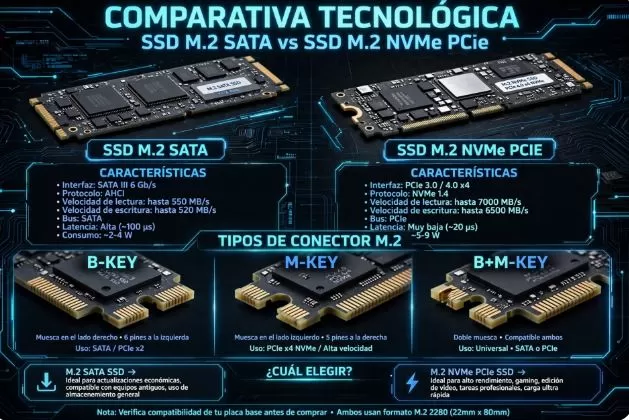
Important: Do not buy an M.2 SATA SSD for a slot that only supports NVMe, nor an NVMe SSD for a dedicated SATA slot. They can both be 2242 or 2280 form factors and still be incompatible.
Keys M.2: B, M and B+M
Before buying, check the SSD notch or key and the Mini PC documentation.
-
M-Key: common in NVMe PCIe x4 SSDs.
-
B-Key: common in SATA M.2 SSDs, modems, and some PCIe connections with fewer lines.
-
B+M-Key: incorporates two notches and appears on many SATA M.2 drives; it does not imply that the SSD is NVMe.
The presence of a specific part number helps determine compatibility, but it does not replace the manufacturer's manual. The Mini PC manufacturer must specify the size, protocol, PCIe generation, and number of available slots.
What format do Mini PCs use?
Most modern consumer Mini PCs use an M.2 2280 NVMe slot for primary storage. Smaller models, industrial designs, some budget-friendly systems, or older models may use an M.2 2242 slot to save space.
It is also relatively common for a Mini PC to combine:
-
An M.2 2280 NVMe slot for the operating system and programs.
-
A second M.2 2280 or 2242 SATA/NVMe slot , depending on the design.
-
A 2.5-inch SATA bay for an additional SSD.
-
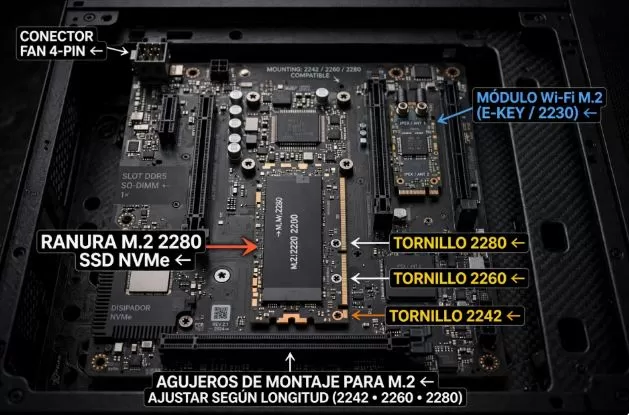
A short M.2 slot intended exclusively for the Wi-Fi/Bluetooth module, which is not suitable for installing an SSD.
Don't confuse the M.2 Wi-Fi slot with a storage slot. A Wi-Fi card may be short, but its key, the available PCIe/USB lanes, and the computer's BIOS aren't necessarily designed for SSDs.
How to find out which SSD your Mini PC supports
Don't buy based solely on photos from AliExpress or Amazon. Follow this process before choosing your SSD:
-
Look for the exact model of the Mini PC: “Beelink SER8” or “GMKtec NucBox” is not enough; identify the exact CPU and barebone version.
-
Consult the technical specifications or official manual: look for terms such as “M.2 2280”, “M.2 2242”, “NVMe”, “PCIe 4.0 x4”, “SATA” and “storage expansion”.
-
Open the device if possible: with the Mini PC turned off and disconnected, check the length of the slot and the point where the fixing screw is located.
-
Check for alternative anchors: some plates have posts for 2242, 2260 and 2280; others only accept one size.
-
Check the factory-installed SSD: its label usually indicates 2242 or 2280, as well as SATA or NVMe.
-
Check for double-sided compatibility: Some Mini PCs do not have enough height for SSDs with chips on both sides.
-
Check the capacity limit: especially on older Mini PCs, confirm if the BIOS limits the drive to 1 TB, 2 TB, or 4 TB.
-
Consider the temperature: a compact Mini PC may have poor airflow; avoid tall heatsinks that prevent the lid from closing.
When to buy an M.2 2280
Choose an M.2 2280 if your Mini PC supports it. It's the easiest form factor to find, usually offers the best capacity-to-price ratio, and provides the widest variety of NVMe SSDs, including PCIe 3.0 and PCIe 4.0 models.
It's a good option for:
-
Install Windows, Linux or Batocera.
-
Store a large library of Steam games, emulators, and other games.
-
Store ISOs of PS2, GameCube, Wii, Wii U, PS3 or Xbox 360.
-
Edit video or work on large projects.
-
Upgrade to 1 TB, 2 TB or 4 TB without relying on less common 2242 models.
Recommended purchase:
View 1TB NVMe M.2 2280 SSD
For a large emulation library, 2 TB is usually a balanced purchase. PS2, GameCube, and Wii games take up little space compared to PS3, Wii U, or PC games, but a large collection can fill 1 TB sooner than expected.
Recommended purchase:
View 2TB NVMe M.2 2280 SSD
When to buy an M.2 2242
Choose an M.2 2242 only if the specifications or motherboard of your Mini PC require it. It's not an inferior format; it's simply shorter and designed for devices with limited internal space.
It's common in some compact Mini PCs, industrial equipment, and business laptops. The selection is smaller than for the 2280, but both SATA and NVMe versions are available, and capacities can reach several terabytes depending on the manufacturer and product generation.
Recommended purchase:
View M.2 2242 NVMe SSD
Before purchasing, explicitly confirm that the drive is NVMe if your slot requires it. AliExpress searches may conflate M.2 SATA and NVMe drives under the same term.
PCIe 3.0, 4.0 or 5.0?
Buying the fastest SSD isn't always the best option. The best purchase depends on your Mini PC's interface, its cooling system, and your actual usage.
| Mini PC Type | more logical SSD | Reason |
|---|---|---|
| Intel N100/N95/N97 | Affordable NVMe PCIe 3.0 or PCIe 4.0 | The system typically limits performance to PCIe 3.0; a Gen 4 will run at a lower speed. |
| Ryzen 5000/6000 | NVMe PCIe 3.0 or 4.0 depending on the slot | Good option for Windows, games and emulation |
| Ryzen 7000/8000 with 2280 | High-quality NVMe PCIe 4.0 | Better balance of speed, price, and efficiency |
| Mini PC for professional use | NVMe PCIe 4.0 with good endurance | More suitable for editing, virtual machines, or databases |
| Equipment with PCIe 5.0 and adequate ventilation | NVMe PCIe 5.0 | It's only worthwhile for very large transfers; it's rarely necessary for emulation. |
For booting the system, using emulators, and loading games, the difference between a fast NVMe PCIe 3.0 SSD and a high-end PCIe 4.0 SSD is usually less important than having more capacity, good RAM, and proper cooling.
Recommended SSDs based on usage
For cheap Mini PCs
If you have a Mini PC with an Intel N100, N95, N97, or similar processor, prioritize capacity, warranty, and a good price/performance ratio. A 1 TB or 2 TB PCIe 3.0 NVMe drive is usually sufficient for Windows, Batocera, RetroBat, and a large retro gaming library.
Search for compatible drives:
1TB M.2 2280 NVMe SSD for Mini PC
For emulation and games
For PS2, GameCube, Wii, Wii U, PSP, and a PC library, a 2TB M.2 2280 NVMe SSD is a well-rounded choice. Look for TLC models when your budget allows, as they generally offer better endurance and sustained performance than QLC alternatives, especially when copying large libraries.
Looking for a 2TB SSD?
2TB M.2 2280 NVMe SSD for gaming and emulation
For Mini PCs with 2242
If your Mini PC requires a 2242MB drive, purchase the correct size before focusing on maximum speed or brand. Confirm that it's an NVMe or SATA drive, depending on your system's slot, and avoid models with a pre-installed heatsink if the cover is too close.
Search for 2242 format:
M.2 2242 SSD for Mini PC
Do you need a heatsink?
Many Mini PCs cannot accommodate a tall M.2 SSD. Before installing it, check the clearance between the SSD and the bottom cover.
For a PCIe 3.0 SSD, a thin thermal pad or copper sheet is usually sufficient if the system has adequate ventilation. For PCIe 4.0 SSDs, especially faster models, a low-profile heatsink can help prevent automatic speed throttling due to temperature during long transfers.
You don't need an aggressive thermal solution to play games, emulate, or open programs: heat matters most during sustained backups, video exports, massive game installations, virtual machines, or prolonged professional workloads.
Useful accessory:
See low-profile heatsinks and thermal pads for M.2 SSDs
How to install an M.2 SSD in a Mini PC
The installation is simple, but it's best to follow a specific order:
-
Turn off the Mini PC completely and unplug the charger.
-
Press and hold the power button for a few seconds to discharge residual energy.
-
Remove the bottom cover using a suitable screwdriver.
-
Locate the M.2 storage slot and the corresponding post 2242 or 2280.
-
Insert the SSD at an angle, approximately 20 to 30 degrees.
-
Gently press the unit onto the plate and secure it with its screw.
-
Install a thermal pad or heatsink only if it fits without putting pressure on the lid.
-
Close the Mini PC, connect it, and enter the BIOS to confirm that it detects the SSD.
-
In Windows, initialize and format the disk from Disk Management; for a clean installation, create an operating system installation USB.
-
Check temperature, capacity, and SMART status with a tool like CrystalDiskInfo or the manufacturer's utility.
Do not force the drive or use the wrong screw. If the SSD does not fit properly, stop and check the size, key, and orientation.
Frequently Asked Questions
Can I put an M.2 2280 SSD in a 2242 slot?
Normally not. The SSD is 38 mm longer and won't have enough physical space or a suitable mounting point. It would only be possible with a modification that isn't recommended, and even then it could prevent the Mini PC from closing or cause thermal problems.
Can I use an M.2 2242 SSD in a 2280 slot?
Only if the motherboard includes a 2242 mounting post or a secure adapter/bracket. Even if the connector fits, do not leave the SSD loose, as it may move and be damaged.
Is a 2280 SSD always faster than a 2242?
No. Size doesn't directly define speed. There are fast 2242 NVMe SSDs and slow 2280 SSDs. Even so, the 2280 has more surface area for NAND chips and components, so it generally offers more models, higher capacities, and better sustained performance.
For Batocera or RetroBat do I need a fast SSD?
Not necessarily. For Batocera, RetroBat, RetroArch, and classic consoles, any reliable NVMe SSD is usually more than enough. If you'll also be storing current PC games, PS3 images, or very large libraries, it's more worthwhile to prioritize 2TB and a high-quality drive.
Is it better to buy 1 TB or 2 TB?
For office applications, streaming, and classic retro gaming, 1 TB is usually sufficient. For multi-platform emulation, Steam games, video projects, or an ISO collection, 2 TB offers more headroom and avoids the need for an upgrade anytime soon.
Verdict
The decision isn't really "M.2 2280 vs M.2 2242": you need to buy the form factor your Mini PC supports. If it supports both, the M.2 2280 is usually the better choice due to availability, capacity, price, and model variety; the M.2 2242 is the right solution when the compact design of the system requires a 42mm drive.
Before buying, always confirm these four specifications:
-
Physical format: 2242, 2280 or other.
-
Interface: NVMe PCIe, SATA M.2 or both.
-
PCIe generation and lanes: PCIe 3.0/4.0/5.0 and x2/x4.
-
Compatible capacity and thickness: including space for heatsink and single or double-sided SSD.
A two-minute check in your Mini PC manual will prevent you from buying an SSD that fits in the connector but doesn't fit, isn't detected, or works at a lower speed than expected.