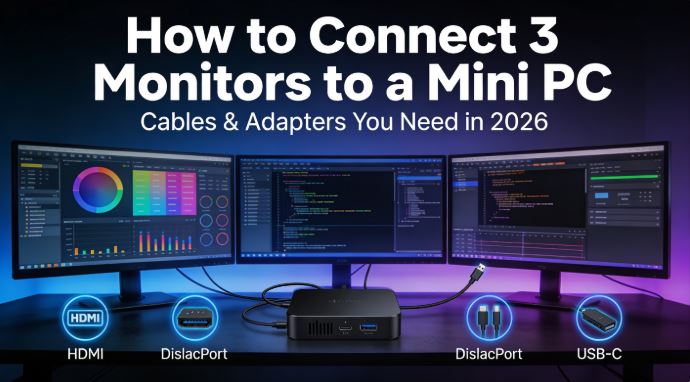
Do you have a mini PC and want to maximize your productivity with three simultaneous screens?
Connecting three monitors to a mini PC is easier than it seems if you have the right cables and adapters.
In this guide we explain everything you need, step by step, with real products available on AliExpress.
🖥️ Why Use Three Monitors with a Mini PC?
Modern mini PCs like the NiPoGi Pinova P1, P2, or MLLSE M7 can handle up to three simultaneous 4K@60Hz displays thanks to their integrated video ports. A triple-screen setup allows you to:
-
Having work on the central screen, communications on the left, and reference/navigation on the right
-
Significantly increase productivity compared to a single screen
-
Create a professional gaming/streaming setup without investing in a tower PC
🔌 Step 1: Identify the Video Ports on your Mini PC
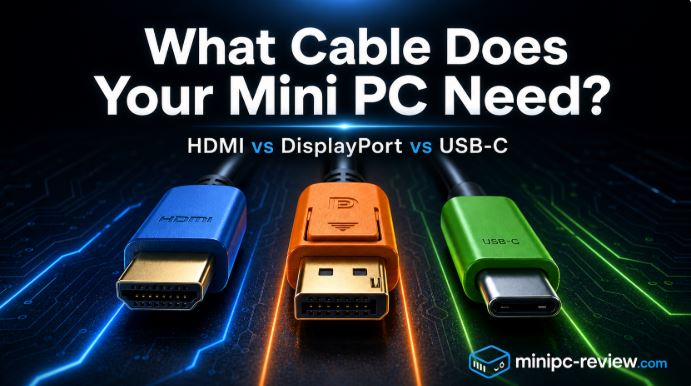
Before buying anything, locate which video outputs your mini PC has. Here's a visual guide to help you identify each type of port:
🔷 HDMI Port
HDMI connector
The most common type found in all mini PCs. It has a trapezoidal shape with the top edges cut off. There are three sizes: Standard HDMI (the most common in mini PCs), Mini HDMI, and Micro HDMI.
-
HDMI 2.0: Supports 4K@60Hz — the one you need for smooth triple display
-
HDMI 1.4: Only supports 4K@30Hz — avoid for everyday 4K use
-
How to identify it: Rectangular port with a notch at the bottom, usually labeled "HDMI" on the mini PC chassis
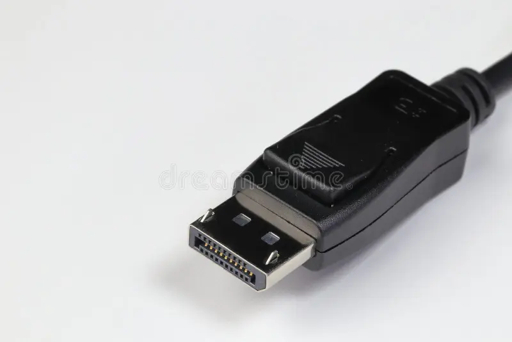
🟦 DisplayPort Port (DP)
Similar to HDMI but with an angled corner on one side, making it easily recognizable. It's the professional and gaming standard par excellence.
-
DisplayPort 1.4: Supports 4K@120Hz or 8K@60Hz with 32Gbps of bandwidth
-
Mini DisplayPort: Smaller version, same functionality (common in compact mini PCs)
-
How to identify it: It looks like an HDMI cable but with the top right corner cut diagonally.
🟣 USB-C Port (DP Alt Mode)
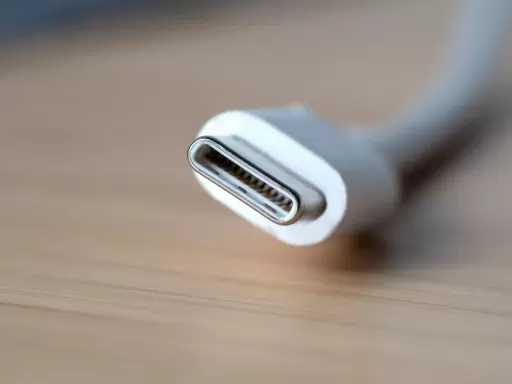
White USB-C connector
The most modern and versatile port. It has an oval and symmetrical shape , identical on both sides (reversible). It is essential to verify that the port supports DisplayPort Alternate Mode to use it as a video output.
-
It supports 4K@60Hz when DP Alt Mode is active.
-
It can also transmit data, audio, and payload simultaneously.
-
How to identify it: Small oval port, usually labeled with the ⚡ symbol or the Thunderbolt logo if it also supports that technology
🔵 Mini DisplayPort
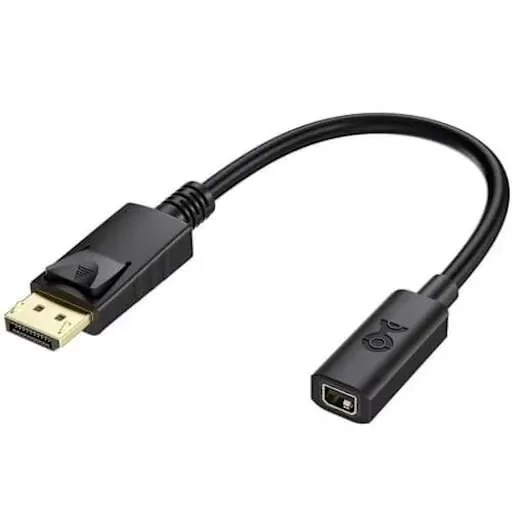
A compact version of the standard DisplayPort, common in very compact mini PCs. It offers the same functionality as the standard DP, only a different size.
-
Requires Mini DP to DP cable or Mini DP to HDMI adapter
-
How to identify it: Smaller than HDMI, with the same characteristic angular shape as DisplayPort
📊 Port Summary Table
| Puerto | Max resolution | Frequency | Frequency of occurrence in mini PCs |
|---|---|---|---|
| HDMI 2.0 | 4K | 60Hz | ⭐⭐⭐⭐⭐ Very frequent |
| DisplayPort 1.4 | 4K/8K | 60-120Hz | ⭐⭐⭐⭐ Frequent |
| USB-C (DP Alt Mode) | 4K | 60Hz | ⭐⭐⭐⭐ Frequent |
| Mini DisplayPort | 4K | 60Hz | ⭐⭐ Occasional |
| HDMI 1.4 | 4K | 30Hz | ⭐⭐⭐ Less and less |
🗺️ Step 2: Map your configuration according to your Mini PC
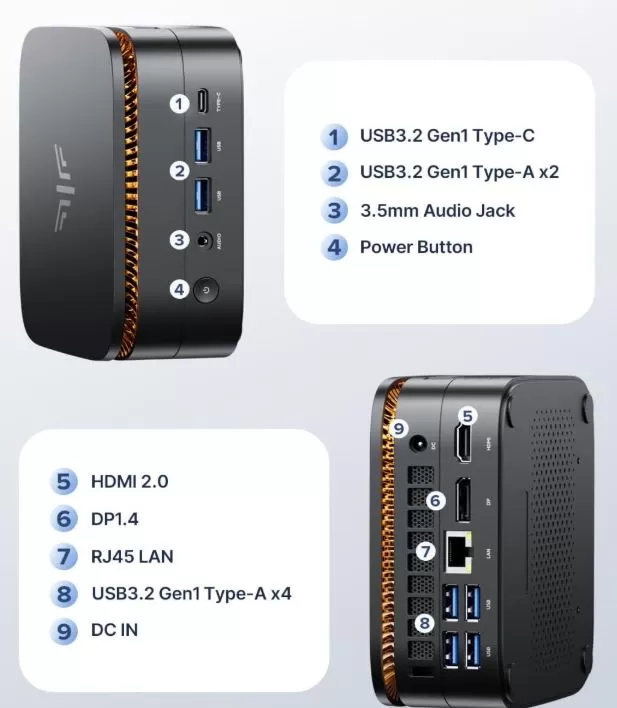
Mini PCs with Triple Video Output (HDMI + DP + USB-C)
Example: NiPoGi Pinova P1, NiPoGi Pinova P2, Beelink SER6
These mini PCs already include three physical outputs, so the connection is direct:
Monitor 1 → Cable HDMI 2.0 Monitor 2 → Cable DisplayPort 1.4 Monitor 3 → Cable USB-C a HDMI (o USB-C a DP)
You don't need any additional hubs or adapters, just the right cables.
Mini PCs with Only Two Video Outputs (HDMI + HDMI)
Example: MLLSE M7 (2× HDMI), some Intel N100 models
To add the third screen you will need an MST hub or a USB-C to HDMI adapter if you have a USB-C port with DP Alt Mode:
Monitor 1 → Cable HDMI 2.0 Monitor 2 → Cable HDMI 2.0 Monitor 3 → Hub USB-C MST Dual HDMI / Adaptador USB-C a HDMI
🛒 Step 3: Recommended Cables and Adapters on AliExpress
🔵 Option A: HDMI 2.0 4K@60Hz Cable
The most basic and essential cable for any triple screen setup.
-
✅ Recommended brands: Ugreen, Vention, Choetech
-
📐 What to look for: HDMI 2.0 / 4K@60Hz / 18Gbps / braided cable
-
💰 Price: €3–8
🟢 Option B: DisplayPort 1.4 4K@120Hz cable
For your mini PC's DP output, it offers greater bandwidth than HDMI and supports higher frequencies.
-
✅ Marca recomendada: Ugreen, CableCreation, Vention
-
📐 What to look for: DisplayPort 1.4 / 32Gbps / HBR3 / 4K@120Hz
-
💰 Price: €5–12
🟡 Option C: USB-C to HDMI 4K@60Hz Adapter
The most common solution for connecting the third monitor is to use the USB-C port.
-
✅ Recommended brands: Ugreen, Anker, Essager
-
📐 Qué buscar: USB-C to HDMI 4K@60Hz / DP Alt Mode / plug and play
-
💰 Price: €5–15
🔴 Option D: MST USB-C Hub with Dual HDMI
Hagibis MST HDMI adapter
If your mini PC only has two video ports, MST (Multi-Stream Transport) hubs allow you to send independent video signals to multiple monitors from a single USB-C port.
-
✅ Recommended brands: Hagibis, Ugreen, j5create
-
📐 What to look for: USB-C MST Hub / Dual HDMI 4K / Extended display (not just mirror)
-
💰 Price: €20–40
-
🔗 Comprar en AliExpress → Hub USB-C MST Dual HDMI 4K
⚠️ Attention: Make sure the hub specifies "extended display" or "MST". Cheap hubs without MST only duplicate the same image on all monitors (mirroring).
🟠 Option E: 7-in-1 USB-C Hub with HDMI + USB Ports
If in addition to the third screen you need more USB ports, this is the most versatile and recommended option for most users.
-
✅ Recommended brands: Ugreen, Anker, Baseus
-
📐 Qué buscar: USB-C Hub 7in1 / HDMI 4K@60Hz / USB 3.0×3 / PD 100W / SD card reader
-
💰 Price: €15–30
📊 Cable Summary According to Your Mini PC
| Mini PC | Puerto 1 | Puerto 2 | Puerto 3 | What do you need |
|---|---|---|---|---|
| NiPoGi Pins P1/P2 | HDMI 2.0 | DisplayPort 1.4 | USB-C 3.2 | Cable HDMI + Cable DP + Adaptador USB-C→HDMI |
| MLLSE M7 | HDMI 2.0 | HDMI 2.0 | USB-C* | 2× Cable HDMI + Hub MST USB-C |
| Beelink SER6 Pro | HDMI 2.0 | DisplayPort 1.4 | USB-C | Cable HDMI + Cable DP + Adaptador USB-C→HDMI |
| Mini PC Intel N100 | HDMI 2.0 | USB-C* | — | Cable HDMI + Hub MST USB-C dual HDMI |
*Check DP Alt Mode support in manufacturer specifications
⚙️ Step 4: Configure the Three Screens in Windows 11
Once all monitors are connected:
-
Right-click on the desktop → Display settings
-
Verify that the 3 detected screens appear numbered (1, 2, 3)
-
In Multiple Displays, select "Extend these displays" (not duplicate)
-
Drag the screens to arrange them according to their physical position
-
Select the home screen → "Make this my home screen"
-
Adjust the resolution and refresh rate of each monitor individually.
-
Click Apply and confirm the changes
🛍️ Quick Shopping List
| Product | Approx. price | Purchase Link |
|---|---|---|
| Cable HDMI 2.0 4K@60Hz Ugreen | ~5 € | 🛒 View on AliExpress |
| Cable DisplayPort 1.4 Ugreen | ~8 € | 🛒 View on AliExpress |
| Adaptador USB-C a HDMI 4K@60Hz | ~8 € | 🛒 View on AliExpress |
| Hagibis USB-C Dual HDMI MST Hub | ~30 € | 🛒 View on AliExpress |
| Hub USB-C 7in1 Ugreen | ~22 € | 🛒 View on AliExpress |
❓ Frequently Asked Questions
Do all mini PCs support triple displays?
Not all. You need a mini PC with at least three working video outputs or a USB-C port with DP Alt Mode. Always check the specifications before buying.
Can I use an HDMI splitter to connect three monitors?
Not for extended use. An HDMI splitter simply mirrors the same image. For separate desktops, you need physically separate ports or an MST hub.
Are AliExpress adapters reliable?
Yes, if you choose well-known brands like Ugreen, Vention, or Anker with over 1,000 sales and a rating above 4.5 stars.
Do I need to install drivers for the adapters?
Most are plug and play on Windows 10/11 without additional drivers. More complex MST hubs may require minimal software.
What if my monitor doesn't have HDMI or DisplayPort?
You can use HDMI to VGA adapters for older monitors, although with some loss of quality and limited resolution.
🏁 Conclusion
Connecting three monitors to a mini PC in 2026 is entirely feasible and affordable. With an investment of between €15 and €50 in cables and adapters, you can transform any modern mini PC into a high-performance multi-display workstation. The key is to correctly identify your mini PC's ports before buying and always choose adapters with explicit support for 4K@60Hz. If you need more than two outputs from a single port, make sure the hub supports MST (Multi-Stream Transport).