You've spent weeks choosing your perfect Mini PC, you receive it, you take it out of the box… and then you realize: what cable do I use to connect it to the monitor?
Why Does the Cable Matter in a Mini PC?
Unlike a tower PC with a dedicated graphics card, Mini PCs rely almost exclusively on the processor's integrated graphics to handle the video signal.
This means that the type of cable and standard you use directly impacts the maximum resolution, refresh rate, and image quality you can achieve.
In 2026, with 4K and 144Hz monitors becoming increasingly accessible, choosing the right cable is no longer a minor detail.
The 3 Types of Cables You'll See in Your Mini PC
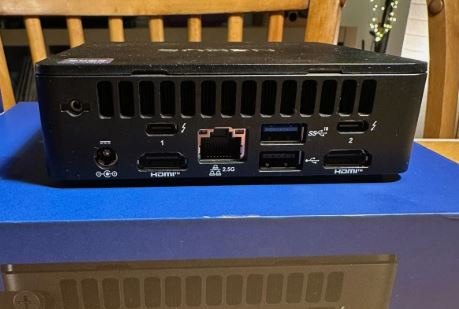
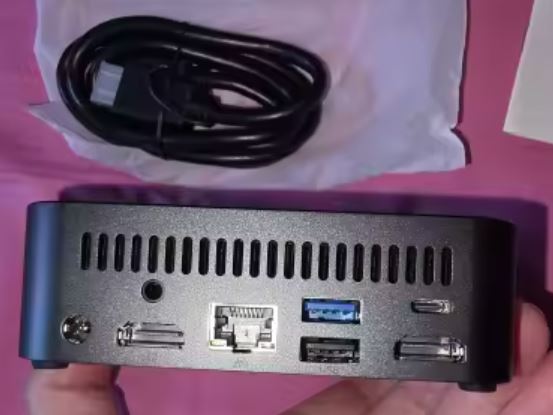
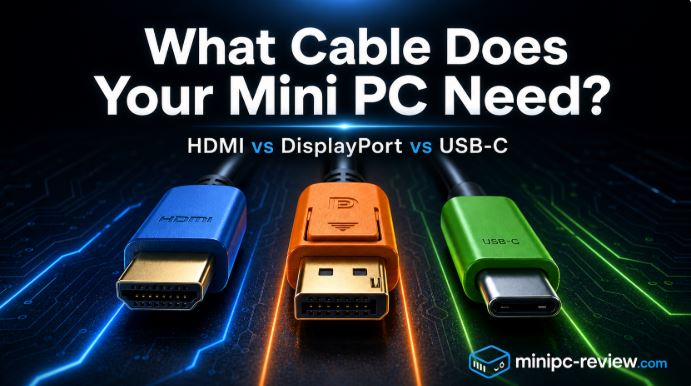
The vast majority of modern Mini PCs include at least two of these three ports. Here's an explanation of each one based on my direct experience:
HDMI — The Universal Standard
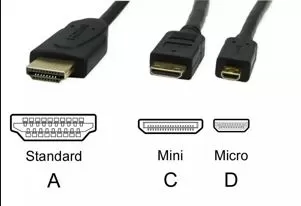
HDMI connector types
HDMI is the connector you'll almost certainly find on your Mini PC, your TV, and your monitor. It's the most universal. The version your device uses makes a huge difference:
-
HDMI 1.4: Up to 4K@30Hz — sufficient for office work, but outdated for gaming
-
HDMI 2.0: Up to 4K@60Hz — the minimum recommended standard today
-
HDMI 2.1 / 2.1b: Up to 4K@120Hz or even 8K@60Hz with 48 Gbps of bandwidth
The best thing about HDMI is its full compatibility with TVs, projectors, and home theater systems, transmitting video and audio through a single cable. The worst thing: it doesn't natively allow you to daisy-chain multiple monitors.
🛒 Recommended cable with affiliate link:
DisplayPort — The King of Gaming and High Frequency
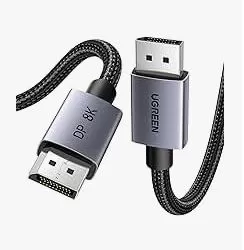
DisplayPort cable connector
DisplayPort is the preferred standard for gaming setups and professional work with high refresh rate monitors. In my opinion, if your Mini PC includes it, it's your first choice.
-
DisplayPort 1.2: Hasta 4K@60Hz o 1440p@165Hz
-
DisplayPort 1.4: Up to 4K@120Hz or 1440p@240Hz — very common in current Mini PCs
-
DisplayPort 2.1: Up to 16K with its 80 Gbps, the most powerful on the market today
DisplayPort also supports sync technologies like G-Sync and FreeSync Premium Pro without HDMI's bandwidth limitations. Furthermore, with Multi-Stream Transport (MST), you can daisy-chain multiple monitors from a single port, something impossible with standard HDMI.
⚠️ Mini DP: Many Mini PCs use the Mini DisplayPort connector instead of the standard DP. It's identical in functionality; you just need the right cable or adapter.
🛒 Recommended cables:
USB-C / Thunderbolt — The Future in a Single Connector
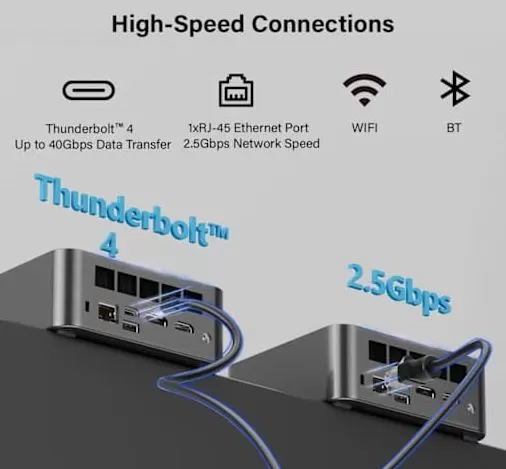
Thunderbolt 4 Mini PC
USB-C with support for DisplayPort Alt Mode or Thunderbolt 4/5 is the most versatile option you can have in a Mini PC. With a single cable, you can transmit video, data, and even power. The most advanced Mini PCs with Thunderbolt 4, such as the MINISFORUM or Beelink, take full advantage of this connector.
-
USB-C with DP Alt Mode: Up to 4K@60Hz depending on the supported DP standard
-
Thunderbolt 4 (40 Gbps): Up to two simultaneous 4K@60Hz displays
-
Thunderbolt 5 (120 Gbps): The most powerful, for 8K or multiple 4K@144Hz displays
The biggest problem with USB-C is that not all cables are created equal. A standard charging cable won't work for high-resolution video. Always look for Thunderbolt certification or the lightning bolt icon engraved on the connector.
🛒 Recommended cables:
Complete Comparative Table 2026
| Feature | HDMI 2.1 | DisplayPort 2.1 | USB-C (TB5) |
|---|---|---|---|
| Bandwidth | 48 Gbps | 80 Gbps | 120 Gbps |
| Max resolution | 10K@120Hz | 16K | 8K@60Hz |
| 4K@144Hz | ✅ | ✅ | ✅ |
| Integrated audio | ✅ | ✅ | ✅ |
| Daisy Chain | ❌ | ✅ | ✅ (TB) |
| G-Sync / FreeSync | Limited | ✅ Full | ✅ |
| Power Delivery | ❌ | ❌ | ✅ (up to 240W) |
| Ideal use | TV, consolas, Home Theater | Gaming, monitores pro | Versatility, portability |
| Compatibility | ⭐⭐⭐⭐⭐ | ⭐⭐⭐⭐ | ⭐⭐⭐ |
Which cable should I use with my mini PCs?
After testing more than 30 different Mini PCs, my personal configuration is as follows:
-
For Mini PCs with Intel N100 or N305 (entry-level): HDMI 2.0 to 4K@60Hz cable — more than enough for the integrated GPU of these chips
-
For Mini PCs with AMD Ryzen 7 or Intel Core Ultra (mid-to-high range): DisplayPort 1.4 to take full advantage of the monitor's 144Hz refresh rate
-
For Mini PCs with Thunderbolt 4 such as the MINISFORUM MS-01: Thunderbolt 4 USB-C cable and multi-connector hub
Adapters: When your Mini PC doesn't have the port you need
USB-C multiport adapter
Sometimes your monitor only has HDMI but your Mini PC only has DisplayPort, or vice versa. Adapters are the solution, but be mindful of the quality.
-
Mini DP to HDMI: Very common, works perfectly up to 4K@30Hz in basic versions
-
USB-C to HDMI: Ideal if your mini PC doesn't have native HDMI, supports up to 4K@60Hz with Alt Mode
-
USB-C to DisplayPort: The best option if you want to play games from a USB-C port
🛒 Recommended adapter:
Final Recommendation by Use Case
-
Working and productivity at home: HDMI 2.0 — universal, inexpensive, more than enough
-
Gaming on a 144Hz+ monitor: DisplayPort 1.4 — the obvious choice, no question
-
Minimalist setup with a single cable: USB-C/Thunderbolt 4 with a good hub
-
Connecting your Mini PC to the living room TV: HDMI is always the standard in the television ecosystem.
-
Dual monitors from a single port: DisplayPort 1.4 with daisy chaining
If you have any questions about exactly which ports your Mini PC includes, check out individual reviews at minipc-review.com.