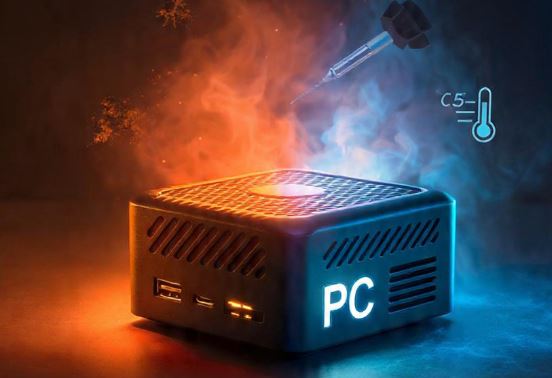
If your Mini PC is overheating, you're not alone. It's one of the most common problems with these compact computers precisely because they pack so much power into such a small space, making heat dissipation difficult.
The good news is that in most cases it has an easy solution without needing a technician. In this article, we explain why it happens and how to fix it step by step.
At what temperature does a problem arise?
Before panicking, it's helpful to know which temperatures are normal and which are dangerous in a Mini PC:
| Situation | CPU temperature | Valuation |
|---|---|---|
| At rest | 30–45 °C | ✅ Normal |
| Moderate use | 50–70 °C | ✅ Normal |
| sustained high load | 75–85 °C | ⚠️ Watch out |
| Peak moment | up to 90 °C | ⚠️ Limit |
| Above 95 °C | +95 °C | 🔴 Dangerous |
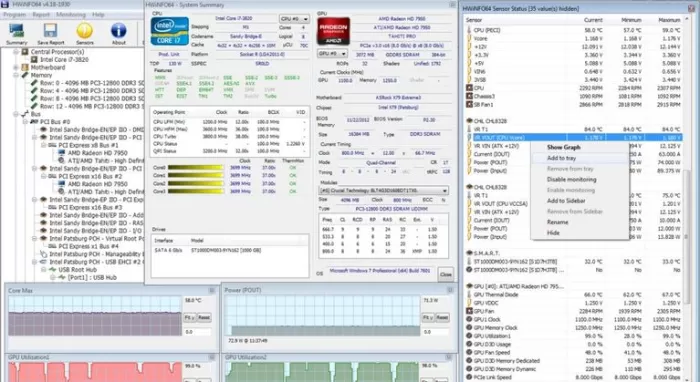
When the CPU consistently exceeds 90–95 °C, the system activates thermal throttling: it automatically reduces performance to protect itself, causing slowness, lag, and sudden shutdowns. Monitor temperatures with free tools like HWiNFO64, Core Temp, or CPU-Z before taking any action.
Main Causes of Overheating in Mini PCs
1. Dust Accumulation in Fans and Grilles
The number one cause of overheating in any computer, and especially in Mini PCs, is dust buildup. In such compact devices, the ventilation grilles are small and easily clogged, preventing proper airflow. Dust acts as an insulating layer over the components, blocking heat dissipation and forcing the fan to work at maximum capacity without being effective.
2. Thermal Paste Dried or Degraded
Thermal paste between the processor and the heatsink is essential for efficient heat transfer. Over time (generally after 2 to 5 years of heavy use), this paste dries out, hardens, and loses its conductive properties. When this happens, heat is not transferred properly to the heatsink, and temperatures rise even at idle.
3. Insufficient Ventilation of the Environment
Placing a Mini PC in an enclosed space, such as a drawer, a rack without airflow, or against a wall, prevents the hot air it expels from dissipating properly. Mini PCs need several centimeters of free space around their ventilation grilles to operate optimally.
4. Excessive Workload and Background Processes
Having too many programs open simultaneously, accumulated browser tabs, or unnecessary software running in the background constantly increases CPU usage, generating sustained heat. This is especially critical in Mini PCs with low TDP processors.
5. Malware o Virus
A hidden virus or cryptominer can silently spike CPU usage to 100%, causing unexplained overheating even without any visible applications running. If your mini PC is overheating for no apparent reason, malware should be one of the first things you suspect.
6. Outdated Drivers, BIOS, or Firmware
Outdated drivers or an old BIOS can incorrectly manage the processor's power profile and fan profiles, causing the computer to operate at a higher voltage or frequency than necessary. This is especially common in Mini PCs with Intel N-series or AMD Ryzen Embedded processors.
7. Internal Fan Failure
In some cases, the internal fan of a Mini PC can deteriorate, become stuck, or fail over time, especially in inexpensive models with low-quality bearings. If the computer makes strange noises or the fan doesn't spin, heat will build up quickly with no way to escape.
Step-by-Step Solutions
✅ Step 1: Monitor Temperatures
Before touching anything, identify the problem with real data. Download and install one of these free tools:
-
HWiNFO64 (Windows) — the most complete for Mini PC
-
Core Temp — simple and CPU-focused
-
CPU-Z — detailed system information
-
MSI Afterburner — if you also want to monitor your GPU
Leave the program running for 10-15 minutes of normal use and note the maximum temperatures reached. This will tell you if the problem is real and which component is causing it.
✅ Step 2: Clean the Dust from the Mini PC
This is the most important step and resolves 70% of overheating cases :
-
Turn off the Mini PC and disconnect it from the power supply completely.
-
Wait 10 minutes for the components to cool down.
-
Open the casing (usually secured with 4 Phillips screws at the base)
-
Use compressed air spray from about 10 cm away to blow out the grilles, fan, and heatsink.
-
Using a soft-bristled brush, remove the dust accumulated in corners and crevices.
-
Also clean the exterior grilles with a slightly damp microfiber cloth
-
Close the case and turn it back on
💡 Recommendation: Clean your Mini PC every 6-12 months if it is in an environment with dust, pets or carpets.
✅ Step 3: Renew the Thermal Paste
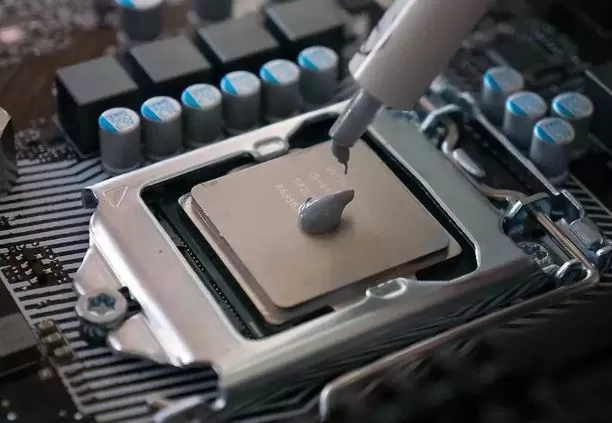
If the problem persists after cleaning, or if the equipment has been in intensive use for more than 2-3 years, it's time to replace the thermal paste:
-
Open the case and locate the heatsink above the CPU.
-
Carefully remove the heatsink screws.
-
Clean the old thermal paste with a cotton swab and 90% or higher isopropyl alcohol.
-
Also clean the base of the heatsink until it is completely clean and dry
-
Apply a pea-sized drop of new thermal paste to the center of the processor
-
Place the heatsink on top and tighten the screws diagonally (not in a circle) to distribute the heat evenly.
-
Close and turn on the equipment
The most recommended thermal pastes are Arctic MX-6, Thermal Grizzly Kryonaut or the classic Noctua NT-H1, available for just a few euros.
✅ Step 4: Improve Location and Ventilation
Check where your Mini PC is located:
-
Make sure there is at least 5-10 cm of free space on all sides where there are grilles.
-
Never place it inside closed drawers, cabinets, or boxes
-
Avoid fabric or carpet surfaces that block bottom ventilation
-
Do not place it under the screen if it generates heat (monitors with internal power supply).
-
Consider using a small elevating stand to improve airflow around the base
-
In summer or warm climates, keep the Mini PC away from direct sunlight.
✅ Step 5: Optimize Software and Processes
Control processor workload from Windows:
-
Open Task Manager (Ctrl + Shift + Esc) (Windows)
-
Sort the processes by CPU percentage and close those that consume a lot for no apparent reason.
-
In Windows Startup, disable programs that start automatically and that you don't need.
-
In Power Settings , switch to a balanced plan instead of "high performance" for everyday use.
-
Limit the maximum processor state to 90% if you don't need constant peak performance: Control Panel → Power Options → Advanced settings → Processor power management
✅ Step 6: Update Drivers, BIOS and Firmware
Outdated firmware can cause the fan to not respond correctly to temperature:
-
Visit the official website of your Mini PC manufacturer (Beelink, MINISFORUM, GMKtec, Intel NUC, etc.)
-
Download the latest BIOS/UEFI version available for your model
-
Also update the chipset drivers from the processor manufacturer's website (Intel or AMD).
-
In some models, BIOS updates include improved fan profiles that significantly reduce temperatures.
✅ Step 7: Undervolting and Underclocking (Advanced Users)
If all of the above is not enough, you can reduce the heat generated directly in the CPU by undervolting:
-
Undervolting: Reduces the voltage the processor receives without lowering its frequency. Less voltage means less heat without a noticeable performance loss. This can be done from the BIOS or with tools like ThrottleStop (Intel) or Ryzen Master (AMD).
-
Underclocking: Reduces the maximum processor frequency. Useful in low-power Mini PCs used for light tasks such as office applications or streaming.
-
TDP limit: Some Mini PCs allow you to adjust the maximum TDP from the BIOS, reducing peak heat under heavy loads.
⚠️ Undervolting requires basic knowledge. Make small changes (in 10 mV increments) and test for stability with Prime95 or Cinebench before setting it as a permanent configuration.
✅ Step 8: Add External Cooling
If the equipment continues to overheat after all that, consider adding external cooling:
-
USB cooling pad with built-in fans — economical and effective for desktop use
-
Mini USB fan aimed directly at the air outlet vents of the Mini PC
-
Thermal pad on the base of the device to improve heat conduction to the desktop
-
In detachable models, some advanced users install additional copper heatsinks over the memory chips or SSDs that also generate heat.
Recommended Tools and Accessories
To implement all these solutions, here are the essential products:
| Product | What is it for? |
|---|---|
| Compressed air spray | Clean dust without opening the equipment |
| Arctic MX-6 thermal paste | Upgrade the CPU-heatsink thermal interface |
| Isopropyl alcohol 90%+ | Clean off the old thermal paste |
| Cotton swabs | Precision cleaning of the heatsink |
| HWiNFO64 (gratis) | Complete temperature monitoring |
| USB cooling pad | Additional external cooling |
| Precision screwdriver | Open the Mini PC case |
🛒 Buy Mini PC maintenance accessories — Thermal paste, compressed air, cooling pads and much more.
When to call technical support?
Take your Mini PC to a professional technician if:
-
The fan makes a metallic noise or doesn't rotate at all.
-
Temperatures remain above 90°C after cleaning and changing the thermal paste
-
The computer shuts down suddenly and repeatedly.
-
There's a burning smell when it's turned on.
-
The Mini PC does not start or displays frequent blue screens (BSOD)
These symptoms may indicate a more serious hardware failure: a broken fan, a poorly mounted heatsink, faulty capacitors, or even damage to the motherboard due to previous overheating that was not addressed in time.
🌡️ Best Programs to Measure the Temperature of Your Mini PC
🥇 1. HWiNFO64 — The Most Complete (Recommended)
It's the most powerful and highly recommended tool for Mini PCs by the technical community. It monitors absolutely everything in real time: CPU, GPU, SSD, and motherboard temperatures, voltages, fan speeds, and power consumption. It displays the minimum, maximum, and current values for each sensor, which is crucial for detecting temperature spikes.
-
🔗 Download: hwinfo.com
-
💰 Price: Free
-
🖥️ Sistema: Windows 32/64 bits
-
✅ Ideal for: Users who want a complete diagnosis
🥈 2. Core Temp — The Easiest
Lightweight, compact, and straightforward. It displays the temperature of each processor core individually in real time, along with load, frequency, and power consumption. Perfect for users who simply want to monitor their CPU without any hassle. It also has a mobile app for remote monitoring.
-
🔗 Download: alcpu.com/CoreTemp
-
💰 Price: Free
-
🖥️ Sistema: Windows
-
✅ Ideal for: Beginners and quick use
🥉 3. HWMonitor (CPUID) — The Most Balanced
Developed by the same creators of CPU-Z, it displays CPU, GPU, hard drive, motherboard temperatures and voltages in a clear and organized interface. It's more visually appealing than HWiNFO and more comprehensive than Core Temp: the perfect middle ground.
-
🔗 Download: cpuid.com/softwares/hwmonitor
-
💰 Price: Free (Paid Pro version)
-
🖥️ Sistema: Windows
-
✅ Ideal for: Intermediate users
4. MSI Afterburner — The Best for Gamers
MSI Afterburner monitoring software
Although known as a GPU overclocking tool, MSI Afterburner is one of the most powerful temperature monitors available. Its standout feature is the in-game overlay: it displays real-time temperatures, FPS, and CPU/GPU usage superimposed on the game without minimizing it. It's compatible with any graphics card, not just MSI.
-
🔗 Download: msi.com/page/afterburner
-
💰 Price: Free
-
🖥️ Sistema: Windows
-
✅ Ideal for: Gamers and users who want overlays in games
5. Speccy — The Most Visual
CPU monitoring software
Developed by the creators of CCleaner, Speccy offers a comprehensive visual overview of all system hardware, including temperatures. Its user-friendly and intuitive interface is ideal for those unfamiliar with these programs. It displays CPU, RAM, GPU, hard drive, and motherboard on a single, organized screen.
-
🔗 Download: piriform.com/speccy
-
💰 Price: Free (Paid Pro version)
-
🖥️ Sistema: Windows
-
✅ Ideal for: Beginners who prefer a visual interface
6. Open Hardware Monitor — The Open Source One
Open-source software that monitors temperatures, fan speeds, voltages, and frequencies of CPUs, GPUs, and hard drives. It includes a Windows 7-style desktop gadget to keep the data readily available. Although its development has stalled somewhat, it still works perfectly on most Mini PCs.
-
🔗 Descarga: openhardwaremonitor.org
-
💰 Price: Free and open source
-
🖥️ Sistema: Windows / Linux
-
✅ Ideal for: Users who prefer free software
7. NZXT CAM — The Most Modern and Aesthetically Pleasing
With a modern and attractive interface, NZXT CAM monitors temperatures, CPU/GPU usage, RAM, and network in real time with animated graphics. It also features a gaming overlay and a mobile app for remote monitoring. A free account is required for some features.
-
🔗 Download: nzxt.com/software/nzxt-cam
-
💰 Price: Free
-
🖥️ Sistema: Windows
-
✅ Ideal for: Users who value visual design
| Software | Level | CPU | GPU | SSD | Fans | Free | Game overlay |
|---|---|---|---|---|---|---|---|
| HWiNFO64 | Advanced | ✅ | ✅ | ✅ | ✅ | ✅ | ❌ |
| Core Temp | Basic | ✅ | ❌ | ❌ | ❌ | ✅ | ❌ |
| HWMonitor | Half | ✅ | ✅ | ✅ | ✅ | ✅ | ❌ |
| MSI Afterburner | Advanced | ✅ | ✅ | ❌ | ✅ | ✅ | ✅ |
| Speccy | Basic | ✅ | ✅ | ✅ | ✅ | ✅ | ❌ |
| Open HW Monitor | Half | ✅ | ✅ | ✅ | ✅ | ✅ | ❌ |
| NZXT CAM | Half | ✅ | ✅ | ✅ | ✅ | ✅ | ✅ |
Frequently Asked Questions
Is it normal for a Mini PC to be hot to the touch?
Yes, it's completely normal for the Mini PC case to be warm or even quite hot to the touch during use. Aluminum Mini PCs use the case itself as a passive heat sink, so they do transfer heat to the outside. The important thing is that the CPU doesn't exceed 85-90°C internally, not the external temperature of the case.
How often should the thermal paste be changed?
For Mini PCs with daily and intensive use, it's recommended to replace the thermal paste every 2-3 years. With light or occasional use, it can last up to 5 years without problems. If you notice that temperatures have risen significantly compared to when it was new, it's a clear sign that the paste has dried out.
Does thermal throttling damage the Mini PC?
Throttling itself doesn't damage the hardware ; it's a protective mechanism designed precisely to prevent damage. However, continuous operation near the thermal limit can reduce the long-term lifespan of components, especially the battery (in battery-powered models) and the motherboard capacitors.
Is it okay to put the Mini PC face up or vertically?
Yes, changing the orientation can improve airflow on some models. Check your Mini PC's manual to see if the manufacturer recommends an optimal orientation. In general, avoid any position that blocks the ventilation grilles.