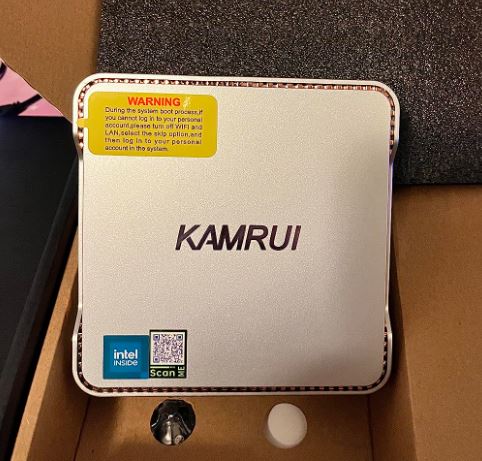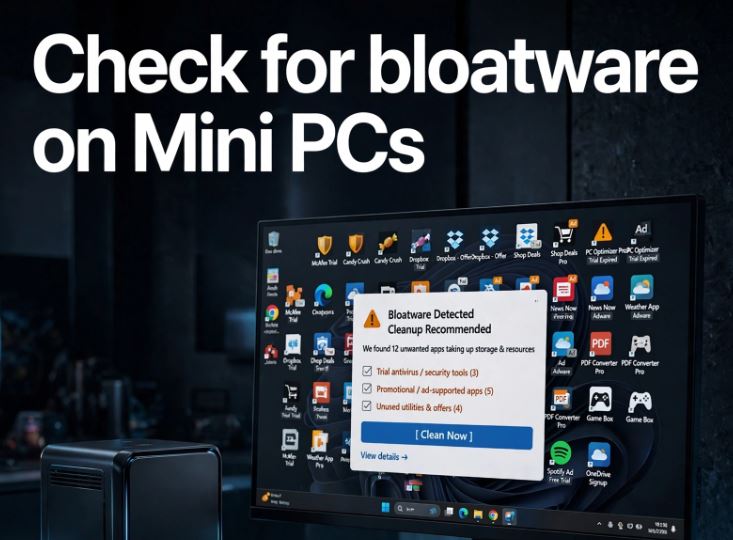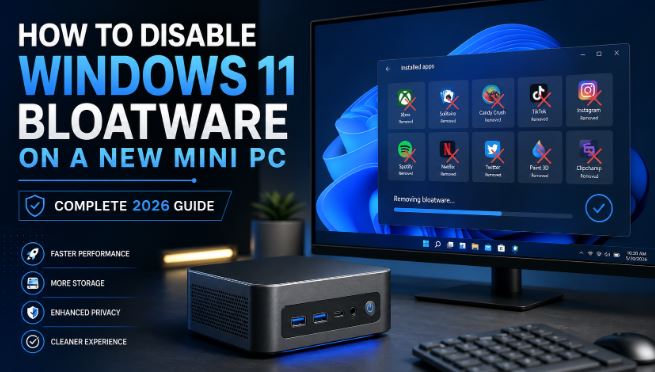
If you've just bought a new mini PC, such as a generic Chinese brand mini PC, it's very likely that when you turn it on for the first time you'll find a Windows 11 loaded with applications you didn't ask for: ad-supported games, antivirus tests, manufacturer utilities, and a good collection of Microsoft apps (Xbox, Copilot, Clipchamp, News) that are rarely used on a computer intended for office work, HTPC, or home server.
This is known as bloatware, and in mini PCs it is especially relevant because they are usually assembled with reduced eMMC or SSD storage (128 GB-256 GB) and low-power processors (Intel N100, N97, Ryzen 5000U), so every background process and every gigabyte used matters much more than in a powerful desktop computer.
What is bloatware and where does it come from on a mini PC?
The bloatware you find on a new mini PC comes from two different sources:
-
Microsoft bloatware: Candy Crush Saga, Bubble Witch Saga, Farm Heroes Saga, Solitaire with ads, LinkedIn, TikTok, Spotify (free version), Xbox Game Bar, Clipchamp, Copilot and the News app, among others.
-
OEM bloatware: Branded mini PCs (Beelink, GMKtec, Minisforum, ASUS, Lenovo, ACEMAGIC) usually come with their own system control utilities, diagnostic panels, driver updaters and, in some cases, free trials of third-party antivirus software such as McAfee or Norton.
Not everything is dispensable: in laptops and some mini PCs, battery management or fan/RGB control software does serve a real function, so it's worth identifying it before deleting it.
Method 1: Uninstall apps from Settings (the safest)
This is the first recommended step for any new mini PC, with no risk of breaking anything:
-
Press Win + I to open Settings.
-
Go to Applications → Installed applications.
-
Sort the list by size or search for the app name.
-
Click on the three dots next to the app and choose Uninstall.
-
Repeat this process for each app you're not going to use: Candy Crush, Bubble Witch, LinkedIn, TikTok, News, Xbox Game Bar (if you're not going to play on the mini PC), and any manufacturer utilities you don't need.
You can also right-click on any icon in the Start menu and choose Uninstall directly, although in many cases what you see is just a shortcut that downloads the actual app from the Microsoft Store when you open it, not the installed application.
Limitation: Several Microsoft system apps are not listed here even if they are installed. For those, you need the following methods.
Method 2: winget from terminal (fast and reproducible)
wingetIt's the official package manager, pre-installed on Windows 11, and is ideal if you're going to set up several mini PCs with the same clean profile:
-
Open PowerShell (you don't need to be an administrator for this).
-
List of installed apps:
winget list -
Uninstall a specific app:
winget uninstall "Spotify" -
Or use the exact ID shown in
winget list:winget uninstall --id Spotify.Spotify
Advantage: You can save a file .txtwith .batall the uninstallation commands and run it every time you set up a new mini PC, which is very useful if you review or prepare several systems to publish comparisons.
Method 3: PowerShell for system apps (AppX)
Some Microsoft apps are integrated as AppX packages and don't appear in Settings or WinGet. To remove them:
-
First of all, create a restore point (search "Create a restore point" in the Start menu).
-
Open PowerShell as administrator.
-
List all installed packages:
Get-AppxPackage | Select-Object Name, PackageFullName | Sort-Object Name
-
Remove a specific pack, for example, Solitaire with ads:
Get-AppxPackage *MicrosoftSolitaireCollection* | Remove-AppxPackage
Packages that are usually deleted without problem: *3DBuilder*, *BingWeather*, *GetHelp*, *Getstarted*, *MixedReality*, *ZuneMusic*, *ZuneVideo*.
Do not remove *WindowsStore* (Microsoft Store), *DesktopAppInstaller*(necessary for winget) or *VCLibs*(redistributables used by many apps).
Method 4: Third-party tools with a graphical interface
If you prefer to avoid the command line, there are three free and open-source tools that are well-established as of 2026:
| Tool | Type | Strength | Ideal for |
|---|---|---|---|
| Win11Debloat | PowerShell script with menu | Very lightweight, one-step launch, telemetry and Bing options included | Users who want speed without installing anything |
| O&O AppBuster | Portable app with checkboxes | Mark apps as "Recommended to delete" vs "Warning" | Users who prefer a visual interface without commands |
| Bloatynosy | App portable | In addition to uninstalling, adjust telemetry and advertising | Those seeking privacy as well as cleanliness |
To launch Win11Debloat with a single command in PowerShell (as administrator):
& ([scriptblock]::Create((irm "https://debloat.raphi.re/")))
It also supports silent mode with parameters, for example:
& ([scriptblock]::Create((irm "https://debloat.raphi.re/"))) -DisableTelemetry -DisableBing -DisableSuggestions -Silent
This is especially useful if you prepare several mini PCs with the same profile before publishing a review or selling them already configured.
⚠️ Avoid "miracle" scripts downloaded from forums without checking their code: they can disable critical services or make the system unstable. Always use projects with an active community and open-source code that can be reviewed on GitHub.
Key new feature: Windows 11 Group Policy 25H2
With the Windows 11 25H2 update , Microsoft introduced, partly due to pressure from the EU's Digital Markets Act (DMA), a new group policy that allows users to officially uninstall pre-installed Microsoft Store packages without PowerShell or external tools.
How to activate it:
-
Open the Group Policy Editor (
gpedit.msc). -
Go to Administrative Templates → Windows Components → App Package Deployment.
-
Open the policy "Remove default Microsoft Store packages from the system".
-
Switch it to Enabled and select the packages you want to remove.
-
Apply the changes; Windows will uninstall the selected items.
Important: This feature is only available in Windows 11 Pro and Enterprise, as the Home edition does not include the Group Policy Editor. If your mini PC came with Windows 11 Home pre-installed, you will need to continue using manual methods or third-party tools.
Startup management: what really affects performance on a mini PC
Uninstalling an app that doesn't run in the background barely changes performance. What does impact performance on a mini PC with a low-power processor (Intel N100, N97, Ryzen U) is controlling what runs at startup.
-
Press Ctrl + Shift + Esc to open Task Manager.
-
Go to the Startup Apps tab .
-
Sort by Impact on startup and disable those marked as High that you don't need (Teams, OneDrive if you use another cloud, Discord, OEM driver updaters).
On mini PCs with slow eMMC or SSD storage, this step is usually more noticeable than the actual uninstallation of apps, because it reduces simultaneous reads at startup.
What you should NEVER delete
-
Microsoft Store: many apps depend on it to update.
-
Windows Defender / Windows Security: is the built-in antivirus.
-
Visual C++ and .NET Framework Redistributables: These are needed by almost all third-party programs and games.
-
DesktopAppInstaller: required for winget to work.
-
OEM battery/fan management software: in some mini PCs it controls thermal or charging thresholds.
Specific recommendations for new mini PCs
If you usually assemble, compare, or review mini PCs (as is common in hardware and comparison content), it's a good idea to add these steps to your "first boot" workflow:
-
Always create a restore point before touching PowerShell or AppX packages.
-
Save a standard winget/Win11Debloat script so you don't have to repeat the process manually on each drive you check.
-
If your mini PC comes with Windows 11 Home, consider whether it's worth upgrading to Windows 11 Pro to access the 25H2 group policy, especially if you manage multiple computers.
-
To make a backup before unblocking, an external SSD or a fast USB 3.0 flash drive makes it easy to create recovery media or clone the disk:
-
If you're considering upgrading your mini PC or looking for models with Windows 11 Pro pre-activated (which simplifies debloat via group policies), these categories are a good starting point: