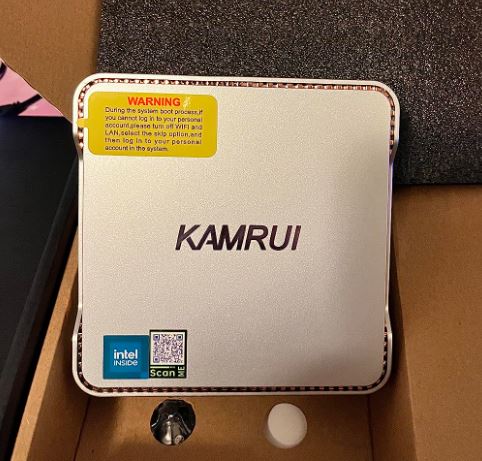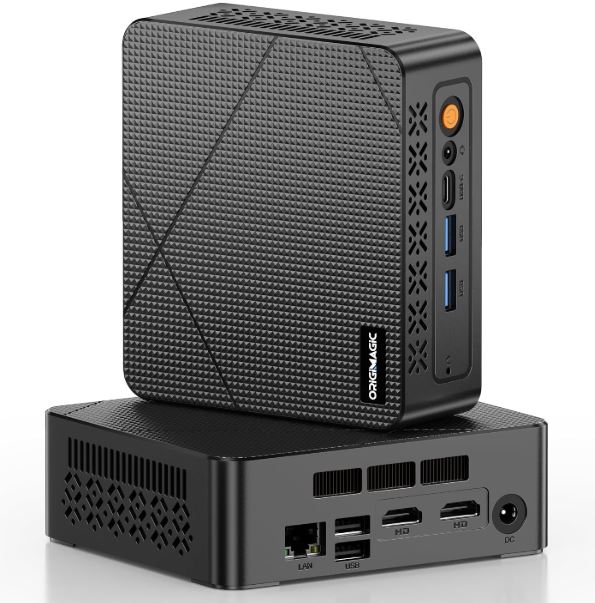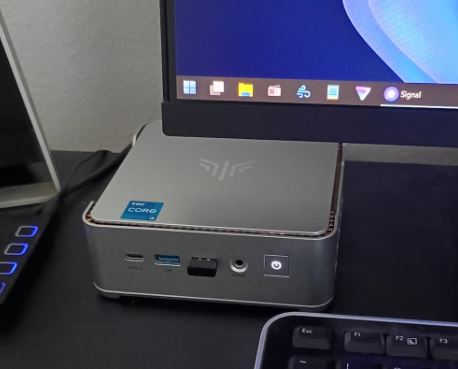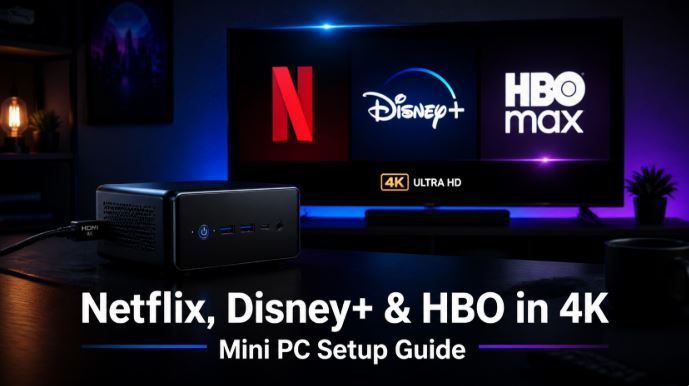
Do you have a Mini PC connected to your TV or monitor and want to get the most out of it by watching series and movies in 4K resolution?
It's entirely possible, but it needs to be configured correctly.
In this guide we explain everything you need to know to enjoy Netflix, Disney+ and HBO Max in Ultra HD quality from your Mini PC.
What do you need to stream 4K on a Mini PC?
Before accessing the settings for each platform, you must ensure your computer meets the minimum requirements. If any are not met, the image will be limited to 1080p or lower.
Hardware requirements
-
Processor: 7th generation Intel (Kaby Lake) or higher, with hardware decoding support for the HEVC (H.265) codec. Modern processors such as the Intel N100, N150, N200, N305 or AMD Ryzen 5000/7000 are perfectly suitable.
-
Operating system: Windows 10 or Windows 11 (updated). Older versions do not support the DRM systems required for 4K.
-
GPU: Graphics card that supports 4K output. The Intel UHD Graphics integrated into the N100 is sufficient for streaming.
-
Video output: HDMI 2.0 port or DisplayPort 1.4 to transmit 4K at 60fps.
-
Monitor or TV: 4K display compatible with HDCP 2.2 (digital content protection). Without HDCP 2.2, the image will automatically degrade.
-
HDMI cable: Must be HDMI 2.0 or higher certified with HDCP 2.2.
-
Internet connection: Minimum 25 Mbps stable. More speed = fewer interruptions.
-
HEVC codec installed: Download the " HEVC Video Extensions " extension from the Microsoft Store (required to decode 4K content on Windows).
💡 Key tip: The most common mistake is having a 4K monitor but an old HDMI 1.4 cable. That cable limits the output to 4K@30Hz or even 1080p. Replace it with an HDMI 2.0 or 2.1 cable.
The Best Mini PCs for 4K Streaming (AliExpress)
These models have everything you need to view 4K content without problems: HDMI 2.0, HEVC support and Intel UHD graphics compatible with HDCP 2.2.
| Mini PC | Processor | RAM/SSD | 4K Output | Link |
|---|---|---|---|---|
| Beelink EQ14 | Intel N150 (3.6 GHz) | 16GB / 500GB | 2x HDMI 4K@60Hz | 🛒 Check Availability |
| BMAX B4 Plus | Intel N100 | 16GB DDR4 / 512GB SSD | 2x HDMI + Type-C 4K@60Hz | 🛒 Check Availability |
| GMKtec G3 | Intel N100 | 8-16GB DDR4 / 256-512GB | WiFi 6, BT5.2, 4K | 🛒 Check Availability |
| CHUWI LarkBox X | Intel N100 | 12GB / 512GB | Dual Display 4K | 🛒 Check Availability |
| BMAX B5A Pro | Intel N100 | 16GB / 512GB | 4K@60Hz | 🛒 Check Availability |
🔌 Recommended accessory: A good HDMI 2.1 cable is essential. 🛒 8K HDMI 2.1 Cable
How to Set Up Netflix in 4K on Your Mini PC
Netflix has the strictest technical requirements for 4K. Follow these steps:
Step 1: Proper Subscription
You need a Netflix Premium or Ultra HD plan. Basic and standard plans only offer up to 1080p.
Step 2: Install the HEVC extension
-
Open the Microsoft Store in Windows
-
Search for " HEVC Video Extensions " (from Microsoft)
-
Download and install it (it may be free or cost ~€1)
Step 3: Use the Netflix app or Microsoft Edge
-
✅ Recommended option: Download the official Netflix app from the Microsoft Store
-
✅ Alternative: Use the Microsoft Edge browser (the only browser on Windows that supports 4K on Netflix)
-
❌ Chrome, Firefox, and Opera only play up to 1080p on Netflix.
Step 4: Activate maximum quality
-
Log in to your Netflix account from your browser
-
Go to Account → Playback Settings
-
Select "High" (or "Automatic")
-
In the Windows app, go to Settings → Video quality and select "High"
Step 5: Verify that you are playing in 4K
While watching 4K content, press Ctrl + Alt + Shift + D to view the technical diagnostics. Check that the bitrate is 15-20 Mbps or higher and that the resolution is 3840x2160.
How to Set Up Disney+ in 4K on Your Mini PC
Disney+ is a little different: unlike Netflix, it doesn't support 4K streaming from Chrome or Firefox on PC. You need to follow these specific steps:
Step 1: Plan with 4K
Make sure you have the Disney+ Premium plan. Ad-free plans include 4K UHD, HDR, and Dolby Vision.
Step 2: Use Microsoft Edge (mandatory)
To watch Disney+ in 4K on a PC, the only compatible browser is Microsoft Edge. Chrome and Firefox limit the resolution to 1080p.
Step 3: Install Disney+ as a PWA (optional)
You can install Disney+ as a desktop application using Edge:
-
Open Disney+ in Microsoft Edge
-
Click on the three dots in the menu (···)
-
Select "Applications → Install this site as an application"
-
A shortcut will be created on your desktop
Step 4: Configure image quality
-
On Disney+, click on your avatar/profile (top right)
-
Go to "Application settings"
-
In Video Quality, select "Automatic" for up to 4K UHD (consumes ~4.2 GB/hour)
🎬 Disney+ Tip: If you connect your Mini PC to your TV via HDMI, make sure the TV's HDMI port is HDMI 2.0 or HDMI 2.1. Some TVs have HDMI 1.4 ports mixed with 2.0, and only 2.0 supports 4K@60fps + HDCP 2.2.
How to Set Up HBO Max in 4K on Your Mini PC
HBO Max (now known simply as Max in some countries) has its own requirements for 4K streaming:
Step 1: Mandatory Ad-Free Plan
4K UHD content is only available with the Ad-Free or Ultimate plan. The Basic plan with ads does not offer 4K.
Step 2: Compatible browser
Unlike Netflix, HBO Max is compatible with Google Chrome, Microsoft Edge, and Mozilla Firefox for 4K. The latest version of Edge or Chrome is recommended.
Step 3: Verify screen requirements
-
Monitor or TV: 4K (3840 x 2160 pixels)
-
Connection: HDMI 2.0 or DisplayPort 1.4 with HDCP 2.2 support
-
Internet: minimum 25 Mbps stable
Step 4: Activate maximum quality
-
On HBO Max, go to your profile → Settings
-
Look for Playback Quality and select "4K Ultra HD"
-
If the option doesn't appear, check that your plan includes 4K.
Comparison Table: 4K Configuration by Platform
| Feature | Netflix | Disney+ | HBO Max |
|---|---|---|---|
| Necessary plan | Premium / Ultra HD | Premium | Ad-Free / Ultimate |
| Compatible browser | Only Edge | Only Edge | Edge, Chrome, Firefox |
| Windows App | ✅ Yes (recommended) | ✅ As a PWA | ✅ Web App |
| HDCP 2.2 required | ✅ Yes | ✅ Yes | ✅ Yes |
| HEVC required | ✅ Yes | ✅ Yes | ✅ Yes |
| Minimal internet | 25 Mbps | 25 Mbps | 25 Mbps |
| 4K data consumption | ~7 GB/hour | ~4.2 GB/hour | ~7 GB/hour |
Recommended Accessories for 4K Streaming
To complete your 4K Mini PC setup, these accessories make all the difference:
-
🔌 HDMI 2.1 8K Cable: To ensure full compatibility → 🛒 Check Availability
-
🖥️ Intel N100 Mini PC with Dual HDMI 2.0: Best Price-Performance Ratio → 🛒 Check Availability
-
🎮 Mini wireless keyboard with touchpad (ideal for living room): → View on AliExpress
-
📶 WiFi 6 Adapter (if your Mini PC is old): → View on AliExpress
Common Problems and Solutions
❓ "4K option not appearing on Netflix/Disney+"
→ Check that you have the HEVC extension installed, that you are using Microsoft Edge, and that your monitor is compatible with HDCP 2.2.
❓ "The image looks fine but only at 1080p"
→ The problem is almost always the HDMI cable or port. Check that both the cable and the ports are HDMI 2.0 or higher.
❓ "Cutting and buffering in 4K"
→ You need at least a stable 25 Mbps connection. Use an Ethernet cable instead of Wi-Fi if possible. If you use Wi-Fi, make sure you have Wi-Fi 5 (802.11ac) or Wi-Fi 6.
❓ "My Mini PC gets very hot when playing 4K"
→ Intel N-series processors like the N100 have low power consumption (6W TDP) and handle 4K perfectly without thermal issues. If you have an older model with an Intel Celeron J4xxx or similar, it may not be powerful enough.
Conclusion
Setting up Netflix, Disney+, and HBO Max in 4K on a Mini PC is entirely feasible if you meet the technical requirements: HDCP 2.2, HDMI 2.0, updated Windows 10/11, HEVC extension, and Microsoft Edge for Netflix and Disney+.
Modern Mini PCs with Intel N100 or higher offer excellent value for money for building a complete 4K media center.