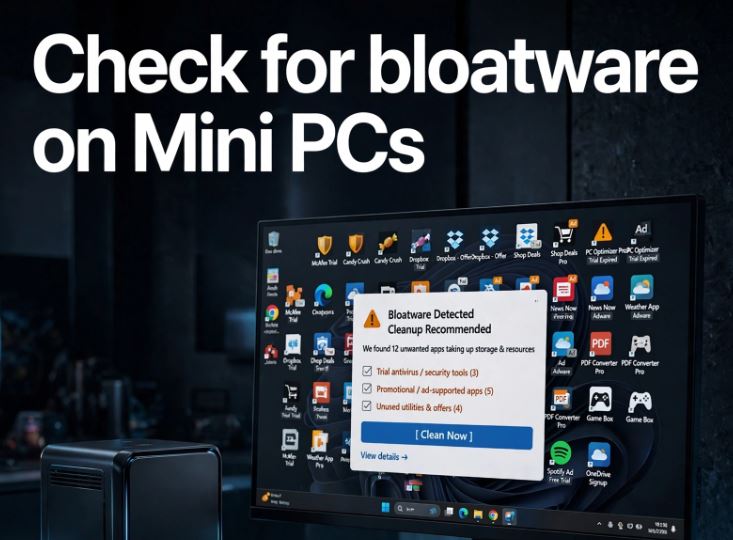
Buying a new Mini PC doesn't guarantee a clean system. Some models come bundled with promotional applications, trial antivirus software, unnecessary utilities, and even software of unclear origin. Reviewing it before logging into your accounts, saving passwords, or using it for work is a basic security measure.
The problem doesn't necessarily affect all manufacturers or all units, but it's more common in budget computers, models sold by different retailers, and configurations with Windows pre-installed. The good news is that you can check it in just a few minutes and, if something doesn't seem right, reinstall Windows from scratch.
Note: The term bloatware refers to pre-installed programs that you don't need and that can take up space, display ads, run in the background, or slow down your computer. Not all bloatware is malware, but all unfamiliar software deserves to be checked.
What is bloatware?
Bloatware is software added to the system that is not essential for using the Mini PC. It may include:
-
Antivirus or VPN tests.
-
Games, promotional shortcuts, and shopping apps.
-
Duplicated manufacturer's utilities.
-
Unhelpful update or cleaning programs.
-
Toolbars, assistants, or applications that run at startup.
-
Tools with generic names or without an identifiable editor.
On a Mini PC with 256 GB or 512 GB of storage, these applications can consume unnecessary space. More importantly, some programs remain active in the background, using RAM, adding startup processes, and potentially impacting privacy or performance.
Why does it appear on some Mini PCs?
Large manufacturers typically include their own utilities for drivers, updates, support, and power profiles. Some are useful; others offer little benefit. In contrast, on Mini PCs from smaller brands or systems sold as "Windows included," the operating system may have been pre-installed by a distributor or integrator before shipping.
This doesn't automatically mean the computer is unsafe. However, if you don't know who installed Windows, you shouldn't assume the system image is clean or that all the included applications are necessary.
The safest recommendation is to treat any pre-installed Windows as a temporary installation: use it to check that the hardware works, but consider a clean installation before making it your main computer.
Warning signs
There are behaviors that warrant an immediate review:
-
Pop-up windows, ads, or commercial notifications appear.
-
The browser opens a specific page upon startup.
-
There are antivirus programs, VPNs, cleaners, or "optimizers" that you didn't install.
-
Windows displays too many gaming, shopping, or social networking applications.
-
The Task Manager reveals processes with strange names.
-
The team has been slow from the very first start.
-
There are browser extensions that you don't recognize.
-
The Windows license is not activating correctly.
-
Windows Update fails or displays abnormal settings.
-
You find additional user accounts that you did not create.
If you detect one or more of these signs, do not log in to online banking, primary email, password managers, or work accounts until you have checked the system.
First step: Update Windows
Before deleting anything, connect the Mini PC to the Internet and run all available updates.
-
Open Settings.
-
Go to Windows Update.
-
Click Check for updates.
-
Install cumulative updates, security updates, and drivers.
-
Restart your computer and repeat the process until there are no more pending updates.
Updates alone do not remove bloatware, but they fix vulnerabilities and can install newer drivers for Wi-Fi, Bluetooth, chipset, audio, and graphics.
Check the installed applications
Go to:
Settings > Apps > Installed apps
Sort the list by installation date and review everything that came pre-installed. Look especially for programs you don't recognize or that don't have a clear publisher.
Applications that you can normally uninstall
In most cases, you can delete them if you don't use them:
-
Third-party trial antivirus.
-
Promotional VPNs.
-
Pre-installed games.
-
Shopping apps.
-
Cleaning, acceleration or “optimization” tools.
-
Duplicate media players.
-
Trial office suites.
-
Browser toolbars and business assistants.
-
Manufacturer applications that do not provide a specific function.
Before deleting an application, search for its exact name online or check the publisher. If you're unsure what it does, don't delete it yet: take a screenshot and check if it belongs to Windows, the Mini PC manufacturer, or a driver.
Apps you shouldn't delete blindly
Avoid uninstalling without confirming:
-
Drivers from AMD, Intel, Realtek, MediaTek or Qualcomm.
-
Bluetooth, Wi-Fi, audio or network software.
-
Microsoft Visual C++ components.
-
Microsoft .NET Runtime.
-
Chipset tools.
-
Intel Graphics Command Center or AMD Software.
-
Power, ventilation, or performance profile software from the manufacturer.
-
Applications required for fingerprint reader, if your model includes it.
Removing a driver can cause Wi-Fi to disappear, sound to fail, or the Mini PC to run at reduced performance.
Check what starts with Windows
Many unnecessary applications are not problematic because they take up space, but because they load every time you turn on the Mini PC.
Press:
Ctrl + Shift + Esc
Then open the tab:
Startup applications
Disable programs you don't need at startup, especially:
-
Discord, Steam, Epic Games or game launchers.
-
Spotify and other players.
-
Updaters of non-essential software.
-
Meeting apps you don't use.
-
Trial antivirus.
-
Advertising, promotional, or shopping tools.
-
“Optimization” applications.
Do not blindly disable elements related to the graphics driver, audio, touchpad, security, or manufacturer processes if you do not know what function they perform.
Review suspicious processes
From Task Manager, go to Processes and sort by CPU, memory, disk, or network usage. A newly started Mini PC should have Windows processes, drivers, and some basic applications, but not dozens of commercial tools consuming resources.
To investigate a process:
-
Right-click on it.
-
Select Open file location.
-
Check the folder where it is installed.
-
Right-click on the file and open Properties.
-
Check the Digital Signatures tab and the company name.
A program installed C:\Program Fileswith a recognized publisher is usually less of a concern than an executable without a digital signature, with a random name, or saved in temporary folders.
Check browser extensions
Chrome, Edge, and other browsers may include extensions installed by a manufacturer, a promotional application, or unwanted software.
In Chrome, open:
chrome://extensions
In Microsoft Edge, open:
edge://extensions
Remove extensions you don't recognize, especially those related to coupons, searches, downloads, unknown VPNs, or browsing "enhancements."
Also check out:
-
Default search engine.
-
Home page.
-
Home tab.
-
Notification permissions.
-
Sites with access to location, camera, microphone, or notifications.
Run a security scan
Windows includes Microsoft Defender, which is sufficient for a first check if it is up to date.
-
Open Windows Security.
-
Go to Virus and threat protection.
-
Click Exam Options.
-
Run a full exam first .
-
If you detect unusual behavior, run an offline scan from Microsoft Defender.
The offline scan restarts the computer and analyzes the system before Windows fully loads, helping to detect persistent threats.
For a second opinion, you can use a reputable anti-malware tool, downloading it only from its official website. Do not install multiple resident antivirus programs simultaneously, as this can cause conflicts and slow down your Mini PC.
Verify your Windows license
Some Mini PCs are sold with Windows properly activated via a digital or OEM license. Others may include unclear activations that fail after an upgrade or reinstallation.
Go to:
Settings > System > Activation
You should see a message similar to:
Windows is activated with a digital license.
If you receive an activation prompt, an unexpected Windows edition, or confusing messages, consult the seller before relying on the computer for professional use. Save screenshots and keep your order, invoice, and product description.
The safest solution: reinstall Windows from scratch
If you have doubts about the installed software, the best option is a clean installation of Windows from an official Microsoft image. This removes pre-installed programs, vendor settings, any extensions, and unnecessary files.
Before you begin, back up any important files to an external drive. If the Mini PC is new, you probably won't have anything to back up, which simplifies the process.
What do you need
-
A USB flash drive of at least 8 GB.
-
Another computer to prepare the installer, if necessary.
-
Internet connection.
-
Access the official Windows download page.
-
The exact model of your Mini PC to download drivers if needed.
Summary process
-
Download the official Windows media creation tool from Microsoft.
-
Create an installation USB drive.
-
Turn off the Mini PC.
-
Connect the USB drive.
-
Turn it on and open the boot menu, usually with
F7,F11,F12,EscorDel, depending on the manufacturer. -
Select the USB.
-
Choose custom installation.
-
If you don't need to keep data, delete the system disk partitions.
-
Install Windows in the unallocated space.
-
Connect to the Internet and let Windows Update download the drivers.
-
Manually install only the missing drivers from the manufacturer's official website.
After installing Windows, go to Activation to check if the digital license has been applied. In many cases, activation is automatically restored when you connect to the internet if the license was linked to the hardware.
What to do after reinstalling
A clean installation should still be lightweight. Only install what you really need:
-
Web browser.
-
Office suite.
-
Password manager.
-
Backup application.
-
Official drivers if Windows does not install them.
-
Steam, emulators, or work tools only when you are going to use them.
For a Mini PC geared towards emulation, you can opt for a clean Windows setup and use RetroBat, Launchbox, or other dedicated emulators. If the device will be used exclusively for retro gaming, installing Batocera on an external SSD or drive avoids loading Windows and reduces unnecessary software.
How to check the drivers
After a clean installation, open:
- Device Manager
Look for icons with a yellow triangle. If present, they usually indicate a missing controller.
The most common areas are:
-
Wi-Fi and Bluetooth.
-
Audio.
-
Chipset.
-
Ethernet.
-
AMD, Intel or Radeon graphics.
-
Card reader.
-
USB 4, USB-C or OCuLink, in advanced models.
Download these drivers from the official website of the Mini PC manufacturer or, where applicable, from AMD, Intel, Realtek, or MediaTek. Avoid "driver updater" websites: they often detect incorrect drivers, install additional software, or charge for unnecessary features.
Tips for buying Mini PCs with less risk
Before you buy, check:
-
Recent reviews that mention Windows, licensing, system language, and pre-installed software.
-
If the seller clearly states "genuine Windows 11 Pro", "barebone" or "no operating system".
-
If the manufacturer provides an official website with BIOS, drivers, and manuals.
-
If there is identifiable technical support and a clear warranty.
-
If the price is too low to include CPU, RAM, SSD and a legitimate Windows license.
-
If the listing accurately describes the RAM, SSD, Wi-Fi, ports, and operating system configuration.
A barebone system can be a good alternative for advanced users: it comes without RAM, SSD, or Windows, but allows you to install components and an operating system from scratch. It usually requires more initial setup, but reduces dependence on the vendor's configuration.
Frequently Asked Questions
Is all pre-installed software dangerous?
No. Some manufacturer tools can be used to update the BIOS, control the fan, adjust the TDP, or install drivers. The problem arises when there are promotional programs, trial antivirus software, unknown extensions, or software without a clear publisher.
Is uninstalling bloatware enough?
Sometimes, yes, especially if there are only known promotional applications. However, a clean installation is the most reliable option when you don't know who prepared the system, you detect suspicious software, or you're going to use the Mini PC for sensitive accounts.
Can I use “Reset this PC”?
This can be helpful, but it doesn't always remove the manufacturer's or vendor's custom image. For maximum security, use a USB drive created with the official Windows image and perform a clean, custom installation.
Does reinstalling Windows void the warranty?
Normally not, because installing the operating system is a software operation. Even so, don't modify the hardware or the BIOS without first checking the manufacturer's or seller's warranty conditions.
What happens if Windows doesn't activate afterwards?
First, connect to the internet, run Windows Update, and check Settings > System > Activation. If activation is not restored, contact the retailer and provide screenshots, your order number, and the description indicating that the computer came with Windows activated.
Conclusion
A new Mini PC should be fast, clean, and secure from the first boot. If unnecessary applications, strange extensions, promotional windows, or unknown processes appear, don't ignore them: scan your system, remove any software you don't need, and run a security scan.
For maximum peace of mind, perform a clean installation of Windows from an official source, install only verified drivers, and add only the applications you'll actually use. It's a quick task that can transform a Mini PC cluttered with unnecessary programs into a faster, more private, and more reliable machine.